Terminal > Modern text editing
Modern text editing overview
# Modern text editing overview import { Tabs, TabItem } from '@astrojs/starlight/components'; import VideoEmbed from '@components/VideoEmbed.astro'; Warp's input editor works like a modern IDE text editor, with cursor movement, click-to-place, multi-line editing, copy-paste, word selection, and soft wrapping built in. Unlike traditional terminals, you can edit commands the same way you edit code — no memorizing shell-specific shortcuts required. :::note Text Editor Input also works for [SSH sessions](/terminal/warpify/ssh/). ::: ### Soft wrapping Warp supports soft wrapping in the input editor. If an autosuggestion goes off-screen, the input editor will be horizontally scrollable to make it visible. Some operations treat soft-wrapped lines like a logical line (triple-click) while other operations treat soft-wrapped lines as visually distinct lines (`↑`/`↓`, `Shift+↑`/`Shift+↓`). ### Copy on select Warp supports copy on select for selectable text within [Blocks](/terminal/blocks/). * Toggle this feature in **Settings** > **Features** > **Terminal** or search for "Copy on select" in the [Command Palette](/terminal/command-palette/). ### Autocomplete quotes, parentheses, and brackets Warp can automatically complete quotes, brackets, and parentheses like you're used to in IDEs. * Toggle this feature in **Settings** > **Features** > **Text Editing** or search for "Autocomplete quotes" in the [Command Palette](/terminal/command-palette/). ## How to use it <Tabs> <TabItem label="macOS"> <table><thead><tr><th width="317">Keyboard binding</th><th>Shortcut description</th></tr></thead><tbody><tr><td><code>Esc</code></td><td>Closes the input suggestions or history menu</td></tr><tr><td><code>Ctrl+L</code></td><td>Clears the terminal</td></tr><tr><td><code>Ctrl+H</code></td><td>Backspace</td></tr><tr><td><code>Ctrl+C</code></td><td>Clear the entire editor buffer</td></tr><tr><td><code>Ctrl+U</code></td><td>Copy and Clear the current line</td></tr><tr><td><code>⌘+Shift+K</code></td><td>Clear selected lines</td></tr><tr><td><code>⌘+C</code>, <code>⌘+X</code>, <code>⌘+V</code></td><td>Copy, cut, paste</td></tr><tr><td><code>Ctrl+W</code> / <code>⌥+D</code></td><td>Cut the word to the left / right of the cursor</td></tr><tr><td><code>⌥+Backspace</code> / <code>⌥+D</code></td><td>Delete the word to the left / right of the cursor</td></tr><tr><td><code>Ctrl+K ⌘+Delete</code></td><td>Delete everything to the right of the cursor</td></tr><tr><td><code>⌥+←</code> / <code>⌥+→</code></td><td>Move to the beginning of the previous / next word</td></tr><tr><td><code>Ctrl+⌥+←</code> / <code>Ctrl+⌥+→</code></td><td>Move backward / forward by one subword</td></tr><tr><td><code>⌘+←</code> <code>Ctrl+A</code>/ <code>Ctrl+E</code> <code>⌘+↓</code> <code>⌘+→</code></td><td>Move the cursor to the start / end of the line</td></tr><tr><td><code>Shift+←</code> / <code>Shift+→</code></td><td>Select the character to the left / right of the cursor</td></tr><tr><td><code>⌥+Shift+←</code> / <code>⌥+Shift+→</code></td><td>Select the word to the left / right of the cursor</td></tr><tr><td><code>⌘+Shift+←</code> / <code>⌘+Shift+→</code></td><td>Select everything to the left / right of the cursor</td></tr><tr><td><code>Shift+↑</code> / <code>Shift+↓</code></td><td>Select everything above / below the cursor</td></tr><tr><td><code>⌘+A</code></td><td>Select the entire editor buffer</td></tr><tr><td><code>Shift+Enter</code> <code>Ctrl+Enter</code> <code>⌥+Enter</code></td><td>Insert newline</td></tr><tr><td><code>Ctrl+R</code></td><td>Command Search</td></tr><tr><td><code>⌘+D</code></td><td>Split pane</td></tr></tbody></table> </TabItem> <TabItem label="Windows"> <table><thead><tr><th width="317">Keyboard binding</th><th>Shortcut description</th></tr></thead><tbody><tr><td><code>Esc</code></td><td>Closes the input suggestions or history menu</td></tr><tr><td><code>Ctrl+L</code></td><td>Clears the terminal</td></tr><tr><td><code>Ctrl+H</code></td><td>Backspace</td></tr><tr><td><code>Ctrl+C</code></td><td>Clear the entire editor buffer</td></tr><tr><td><code>Ctrl+U</code></td><td>Copy and Clear the current line</td></tr><tr><td><code>Ctrl+Shift+K</code></td><td>Clear selected lines</td></tr><tr><td><code>Ctrl+C</code>, <code>Ctrl+X</code>, <code>Ctrl+V</code></td><td>Copy, cut, paste</td></tr><tr><td><code>Ctrl+W</code> / <code>Alt+D</code></td><td>Cut the word to the left / right of the cursor</td></tr><tr><td><code>Alt+Backspace</code> / <code>Alt+D</code></td><td>Delete the word to the left / right of the cursor</td></tr><tr><td><code>Ctrl+K</code></td><td>Delete everything to the right of the cursor</td></tr><tr><td><code>Alt+←</code> / <code>Alt+→</code></td><td>Move to the beginning of the previous / next word</td></tr><tr><td><code>Ctrl+←</code> / <code>Ctrl+→</code></td><td>Move backward / forward by one subword</td></tr><tr><td><code>Ctrl+A</code>/ <code>Ctrl+E</code></td><td>Move the cursor to the start / end of the line</td></tr><tr><td></td><td>Select the character to the left / right of the cursor</td></tr><tr><td><code>Meta+Shift+B</code> / <code>Meta+Shift+F</code></td><td>Select the word to the left / right of the cursor</td></tr><tr><td></td><td>Select everything to the left / right of the cursor</td></tr><tr><td><code>Shift+↑</code> / <code>Shift+↓</code></td><td>Select everything above / below the cursor</td></tr><tr><td><code>Ctrl+A</code></td><td>Select the entire editor buffer</td></tr><tr><td><code>Shift+Enter</code> <code>Ctrl+Enter</code> <code>Alt+Enter</code></td><td>Insert newline</td></tr><tr><td><code>Ctrl+R</code></td><td>Command Search</td></tr><tr><td><code>Ctrl+Shift+D</code></td><td>Split pane</td></tr></tbody></table> </TabItem> <TabItem label="Linux"> <table><thead><tr><th width="317">Keyboard binding</th><th>Shortcut description</th></tr></thead><tbody><tr><td><code>Esc</code></td><td>Closes the input suggestions or history menu</td></tr><tr><td><code>Ctrl+L</code></td><td>Clears the terminal</td></tr><tr><td><code>Ctrl+H</code></td><td>Backspace</td></tr><tr><td><code>Ctrl+C</code></td><td>Clear the entire editor buffer</td></tr><tr><td><code>Ctrl+U</code></td><td>Copy and Clear the current line</td></tr><tr><td><code>Ctrl+Shift+K</code></td><td>Clear selected lines</td></tr><tr><td><code>Ctrl+C</code>, <code>Ctrl+X</code>, <code>Ctrl+V</code></td><td>Copy, cut, paste</td></tr><tr><td><code>Ctrl+W</code> / <code>Alt+D</code></td><td>Cut the word to the left / right of the cursor</td></tr><tr><td><code>Alt+Backspace</code> / <code>Alt+D</code></td><td>Delete the word to the left / right of the cursor</td></tr><tr><td><code>Ctrl+K</code></td><td>Delete everything to the right of the cursor</td></tr><tr><td><code>Alt+←</code> / <code>Alt+→</code></td><td>Move to the beginning of the previous / next word</td></tr><tr><td><code>Ctrl+←</code> / <code>Ctrl+→</code></td><td>Move backward / forward by one subword</td></tr><tr><td><code>Ctrl+A</code>/ <code>Ctrl+E</code></td><td>Move the cursor to the start / end of the line</td></tr><tr><td></td><td>Select the character to the left / right of the cursor</td></tr><tr><td><code>Meta+Shift+B</code> / <code>Meta+Shift+F</code></td><td>Select the word to the left / right of the cursor</td></tr><tr><td></td><td>Select everything to the left / right of the cursor</td></tr><tr><td><code>Shift+↑</code> / <code>Shift+↓</code></td><td>Select everything above / below the cursor</td></tr><tr><td><code>Ctrl+A</code></td><td>Select the entire editor buffer</td></tr><tr><td><code>Shift+Enter</code> <code>Ctrl+Enter</code> <code>Alt+Enter</code></td><td>Insert newline</td></tr><tr><td><code>Ctrl+R</code></td><td>Command Search</td></tr><tr><td><code>Ctrl+Shift+D</code></td><td>Split pane</td></tr></tbody></table> </TabItem> </Tabs> ## How it works <VideoEmbed url="https://loom.com/share/1517049fefc34227bf1abaf19cc7e6ea?hide_owner=true&hide_share=true&hide_title=true&hideEmbedTopBar=true" title="Text Editor Input Demo" /> <figure>  <figcaption>Soft wrapping applied to long lines in the editor.</figcaption> </figure>Tell me about this feature: https://docs.warp.dev/terminal/editor/Unlike other terminals, Warp’s input editor operates out of the box like a modern IDE and the text editors we’re used to.
Warp’s input editor works like a modern IDE text editor, with cursor movement, click-to-place, multi-line editing, copy-paste, word selection, and soft wrapping built in. Unlike traditional terminals, you can edit commands the same way you edit code — no memorizing shell-specific shortcuts required.
Soft wrapping
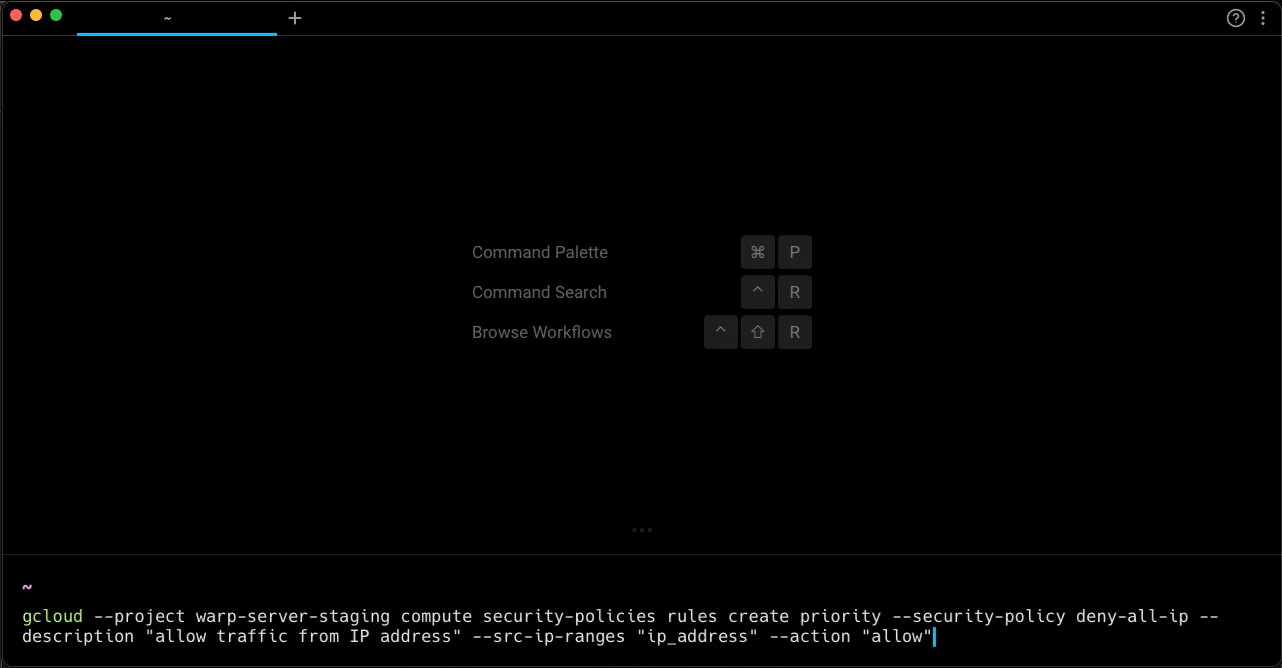
Section titled “Soft wrapping”Warp supports soft wrapping in the input editor. If an autosuggestion goes off-screen, the input editor will be horizontally scrollable to make it visible. Some operations treat soft-wrapped lines like a logical line (triple-click) while other operations treat soft-wrapped lines as visually distinct lines (↑/↓, Shift+↑/Shift+↓).
Copy on select
Section titled “Copy on select”Warp supports copy on select for selectable text within Blocks.
- Toggle this feature in Settings > Features > Terminal or search for “Copy on select” in the Command Palette.
Autocomplete quotes, parentheses, and brackets
Section titled “Autocomplete quotes, parentheses, and brackets”Warp can automatically complete quotes, brackets, and parentheses like you’re used to in IDEs.
- Toggle this feature in Settings > Features > Text Editing or search for “Autocomplete quotes” in the Command Palette.
How to use it
Section titled “How to use it”| Keyboard binding | Shortcut description |
|---|---|
Esc | Closes the input suggestions or history menu |
Ctrl+L | Clears the terminal |
Ctrl+H | Backspace |
Ctrl+C | Clear the entire editor buffer |
Ctrl+U | Copy and Clear the current line |
⌘+Shift+K | Clear selected lines |
⌘+C, ⌘+X, ⌘+V | Copy, cut, paste |
Ctrl+W / ⌥+D | Cut the word to the left / right of the cursor |
⌥+Backspace / ⌥+D | Delete the word to the left / right of the cursor |
Ctrl+K ⌘+Delete | Delete everything to the right of the cursor |
⌥+← / ⌥+→ | Move to the beginning of the previous / next word |
Ctrl+⌥+← / Ctrl+⌥+→ | Move backward / forward by one subword |
⌘+← Ctrl+A/ Ctrl+E ⌘+↓ ⌘+→ | Move the cursor to the start / end of the line |
Shift+← / Shift+→ | Select the character to the left / right of the cursor |
⌥+Shift+← / ⌥+Shift+→ | Select the word to the left / right of the cursor |
⌘+Shift+← / ⌘+Shift+→ | Select everything to the left / right of the cursor |
Shift+↑ / Shift+↓ | Select everything above / below the cursor |
⌘+A | Select the entire editor buffer |
Shift+Enter Ctrl+Enter ⌥+Enter | Insert newline |
Ctrl+R | Command Search |
⌘+D | Split pane |
| Keyboard binding | Shortcut description |
|---|---|
Esc | Closes the input suggestions or history menu |
Ctrl+L | Clears the terminal |
Ctrl+H | Backspace |
Ctrl+C | Clear the entire editor buffer |
Ctrl+U | Copy and Clear the current line |
Ctrl+Shift+K | Clear selected lines |
Ctrl+C, Ctrl+X, Ctrl+V | Copy, cut, paste |
Ctrl+W / Alt+D | Cut the word to the left / right of the cursor |
Alt+Backspace / Alt+D | Delete the word to the left / right of the cursor |
Ctrl+K | Delete everything to the right of the cursor |
Alt+← / Alt+→ | Move to the beginning of the previous / next word |
Ctrl+← / Ctrl+→ | Move backward / forward by one subword |
Ctrl+A/ Ctrl+E | Move the cursor to the start / end of the line |
| Select the character to the left / right of the cursor | |
Meta+Shift+B / Meta+Shift+F | Select the word to the left / right of the cursor |
| Select everything to the left / right of the cursor | |
Shift+↑ / Shift+↓ | Select everything above / below the cursor |
Ctrl+A | Select the entire editor buffer |
Shift+Enter Ctrl+Enter Alt+Enter | Insert newline |
Ctrl+R | Command Search |
Ctrl+Shift+D | Split pane |
| Keyboard binding | Shortcut description |
|---|---|
Esc | Closes the input suggestions or history menu |
Ctrl+L | Clears the terminal |
Ctrl+H | Backspace |
Ctrl+C | Clear the entire editor buffer |
Ctrl+U | Copy and Clear the current line |
Ctrl+Shift+K | Clear selected lines |
Ctrl+C, Ctrl+X, Ctrl+V | Copy, cut, paste |
Ctrl+W / Alt+D | Cut the word to the left / right of the cursor |
Alt+Backspace / Alt+D | Delete the word to the left / right of the cursor |
Ctrl+K | Delete everything to the right of the cursor |
Alt+← / Alt+→ | Move to the beginning of the previous / next word |
Ctrl+← / Ctrl+→ | Move backward / forward by one subword |
Ctrl+A/ Ctrl+E | Move the cursor to the start / end of the line |
| Select the character to the left / right of the cursor | |
Meta+Shift+B / Meta+Shift+F | Select the word to the left / right of the cursor |
| Select everything to the left / right of the cursor | |
Shift+↑ / Shift+↓ | Select everything above / below the cursor |
Ctrl+A | Select the entire editor buffer |
Shift+Enter Ctrl+Enter Alt+Enter | Insert newline |
Ctrl+R | Command Search |
Ctrl+Shift+D | Split pane |
How it works
Section titled “How it works”